The best practice is to save your document in PDF format before taking it to a print shop or cyber cafe. Most cyber cafes use Microsoft Office, LibreOffice, or OpenOffice, depending on their setup.
However, document formatting can vary depending on the software used and its compatibility with the fonts and design elements in your file. If your document uses custom or uncommon fonts, there is a risk that they may not display correctly on another computer, which can affect the overall design, formatting, and layout structure.
To avoid these issues, always export your document as a PDF before printing. This helps preserve the original layout, fonts, spacing, and overall appearance of your document.
Preparing a file for a Xerox print shop is easy if you set the correct page size, margins, image quality, and file format before printing. For the best results, save your document as a print-ready PDF.
1. Choose the correct page size
Most General used Paper in India is A4
A4 — 210 × 297 mm : Best for assignments, reports, notes, forms, and everyday documents.
AND
A3 Paper 30-50% Cyber cafe Having A3 Printers it Depends yours Locality or Demands
A3 — 297 × 420 mm : Best for posters, diagrams, charts, and larger drawings.
Landscape or portrait
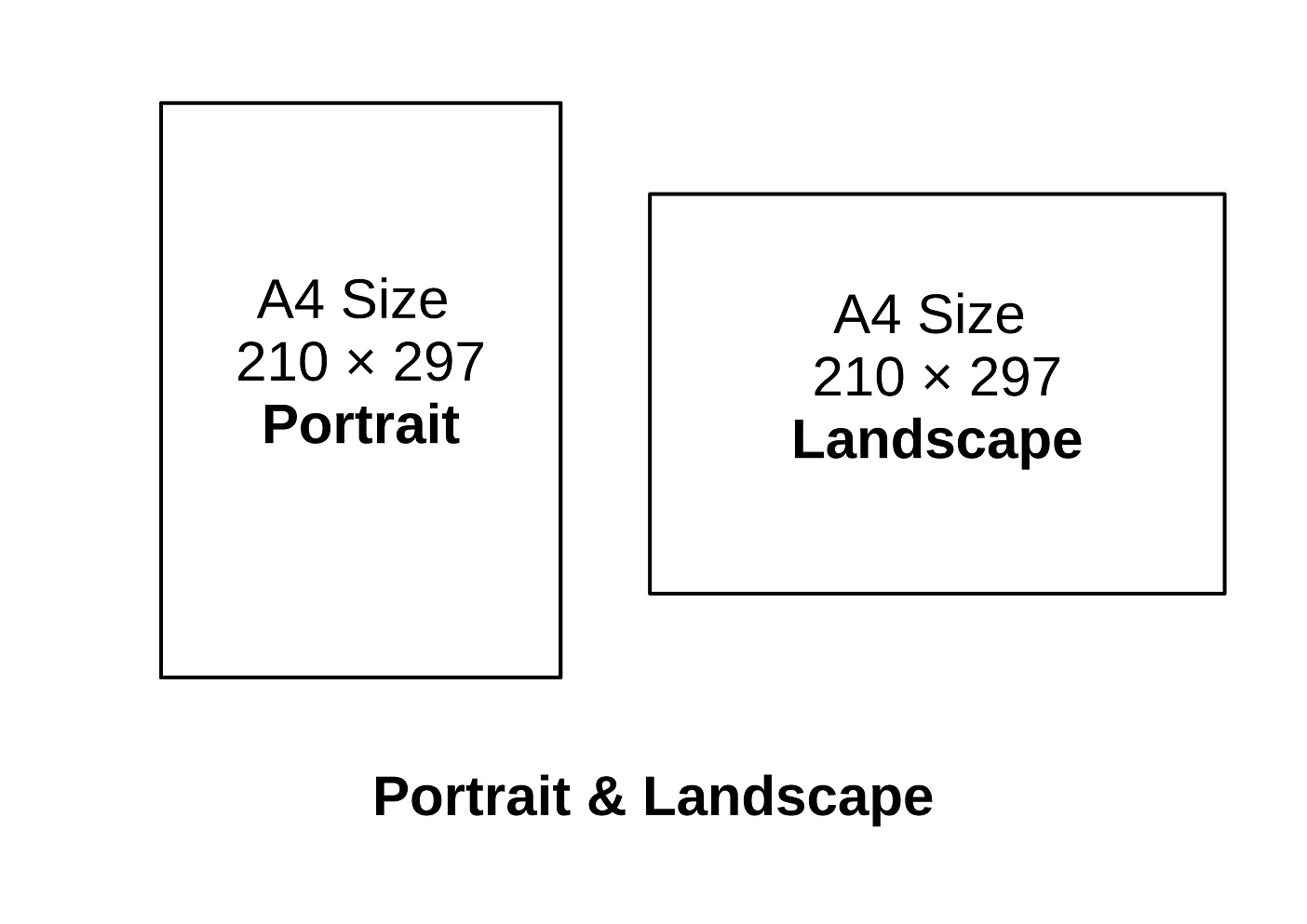
Choose the orientation that matches your document.
2. Set up the document properly
Before exporting, check these settings:
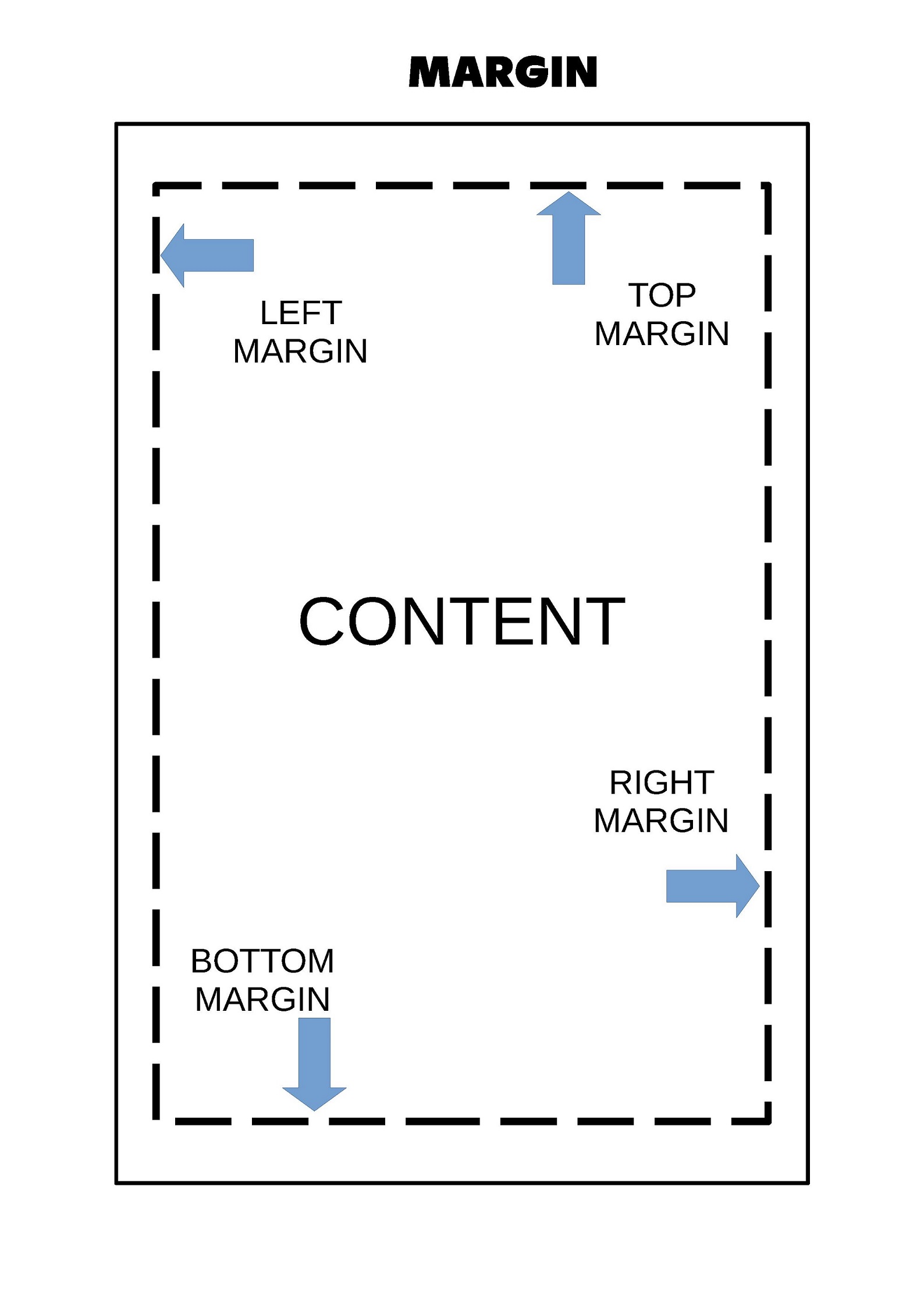
Margins: Keep important text at least 10–15 mm from the paper edges. (In Case of book or Spiral Binding, make it Atleast 35mm from Left Side)
Fonts: Embed fonts in the PDF so the text doesn’t change on another computer.
Images: Use 300 DPI for photographs and detailed graphics at their final print size.(Not useful for simple Word File )
Colors: Use CMYK if the print shop requests it for commercial color printing; otherwise, a normal RGB PDF is generally acceptable.
3. Export your file as a PDF
Recommended format: PDF
Preserves page layout, fonts, and document formatting.
In Microsoft Word
Open File → Save As or Export.
Select PDF as the file type.
Choose the standard or print-quality option.
Save and reopen the PDF to verify it.
In Google Docs
Select File → Download → PDF Document (.pdf).
Open the downloaded PDF and check every page.
On a phone
Open the document.
Select Print or Share → Print, depending on the app.
If available, choose Save as PDF.
4. Check the PDF before sending it
Use this checklist before taking the file to the Xerox shop.
Print-ready checklist
0 of 6
Correct paper size and orientation
All pages present and in the correct order
Text and images are sharp and readable
No missing fonts, cut-off text, or blank pages
Correct color or black-and-white output
Correct number of copies and single-/double-sided settings
5. Tell the Xerox shop how you want it printed
Specify the following when handing over your file:
Paper size: A4, A3, or another size
Color: black and white or color
Sides: single-sided or double-sided
Quantity: number of copies
Paper: regular paper, thicker paper, or glossy paper
Finishing: stapling, binding, lamination, or cutting, if needed
You can give the shop the PDF on a USB drive, send it through email or WhatsApp, or upload it through the shop’s preferred service.
